
9 ways to improve your spreadsheets
This is the first of the "9 ways to improve your spreadsheets" blog series. This post provides a sneak peek at all 9 tips with links to the relevant deep-dive blog posts.
Think of your spreadsheet like a toolbox. Sure, it’s got all the tools you need, but if you don’t know where the hammer is, you’ll be using a wrench to drive nails. Let’s get those tools organized and working for you! Ready to transform your data game? Let’s get started!

Written By Séan Smith
So you work with spreadsheets...
For those of you that use spreadsheets, you might have noticed that if you use a spreadsheet for your own purpose to achieve an individual/ specific task you have your own style and approach to setting up the data/ information in a way that makes sense for you. You also might have noticed that your colleagues may approach the same task in a completely different way.
So, once there's more than one person working on the spreadsheet, you need a process in place to effectively utilise that spreadsheet to deliver strategic results as a team, in a way that makes sense for all stakeholders.

Whether you’re a team leader or an analyst working as part of a team, you may hear (or think) some of these:
"The data we need has changed, but I’d like to keep what we have (just in case)..."
"I can’t work out/remember how the sheet gets these figures..."
"‘Employee A’ has left/ is off and ‘Employee B’ can’t find the info needed..."
"I know there is more I can get from this data, but don’t know how..."
These are a few key things to consider when setting up a new spreadsheet or improving an existing one. Use this as a checklist for rethinking your spreadsheets. Think about:
1. Purpose: What is the spreadsheet for?
2. KPIs: Is your key data easy to find?
3. Future-Proofing: Will your sheet be fit for purpose in 5 years?
4. Documentation: Can you explain what this document is used for?
5. Single Source of Truth: Could/ Would/ Should you combine data sources?
6. Saving Etiquette: Do you have a method of version control?
7. Functionality: Is there more I can do in my spreadsheets?
8. Spreadsheet Size: Can you streamline the size to increase functionality?
9. Innovation: Are there better tools you can use?
1. Purpose: What is the spreadsheet for?
This is something that can often change over time, however it’s important to review:
- Does this sheet fulfil the initial/new purpose. If not, why are we still using it?
- Clearly identify why the sheet exists? What does it need to show and how? And ensure this is a single source of truth.
- Is this purpose duplicated anywhere else, in your team or within the broader business?
- Who will be using this or have access to it? An internal sheet is probably going to have a different purpose to a customer-facing sheet.
- Is this a one-off or is it worth creating something that can be re-used/ re-purposed?
- Is this a part of a bigger process? Do the results get manipulated again?
- What ‘moving parts’ does this sheet need to fulfil its purpose?
More information on ‘purpose’ can be found in the dedicated blog post Spreadsheet improvements 1/9: Purpose
2. KPIs: Is your key data easy to find?
If you want your KPIs easier to attain, you will need to make sure the data that informs those metrics is easy to find. A logical set up to your spreadsheet can save hours when you must update statistics or even just find that ever elusive set of numbers.
Think about:
- Organising tabs so they follow the data flow from Results to RAW, this allows you to see the Headlines/Findings then work into more granularity
- Clearly label tabs, graphs and charts, for example is the data showing a ‘Monthly Sales Summary’ or a ‘Daily Website Visits Breakdown’? A tab called ‘Graphs and Charts of…’ could be useful. You can even take it one step further and create a dashboard containing all the visuals needed for reporting in one place. See below an example dashboard (click on the screenshot below to visit the Microsoft Support feed on dashboarding):

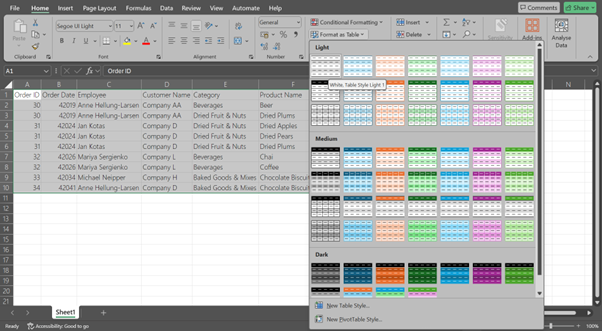
- Structuring your data for sorting, filtering, or referencing is made easy by formatting tables… well… as tables
- Make sure the columns and rows headings are visible (by using freezing panes), so you don’t have continuously scroll up and down and back and forth, for example to check if you are looking at the ‘Recommended Retail Price’ or ‘Margin’.
- Highlight cells containing keys figures for regular reporting, or conditional format to give insight at a glance.
- Using Trace Precedents and Trace Dependents in the formulas section of the toolbar will show you where your data has come from, where it leads to.
Also, making notes in shared space (i.e., in a shared document, as a tab in the spreadsheet) can help you track your data process and decisions and improve training in future. For more on these particular issues, see the 4. Documentation section below.
More information on how to achieve your KPIs by making your key data easy can be found in the dedicated blog post Spreadsheet improvements 2/9 KPIs
3. Future-Proofing: Will your sheet be fit for purpose in 5 years?
Requirements can change and you won’t always need the data to be viewed the same ways or in the same categories, but it’s very important to have a logic to how you (a) collate, (b) process and (c) report on your data.
a) Data Collation
It’s key to understand what you may need the data for in the foreseeable future, how can you collect the right granularity of RAW data to ensure you can drive the insight needed. You should always be asking yourself this: ‘are we storing data in this spreadsheet in a tab or table somewhere that can be used to answer the questions stakeholders may have?’
Using sales data of mobile phones as an example, do you only collect sales figures per product/ brand, or do you need all makes, models, colours, etc. as in the example below:

b) Data Processing/ Analysis
When it comes optimising data processing and/ or analysis to anticipate and meet future requirements, ask yourself: ‘does our process need extensive human intervention and, if so, can this be reduced?’ Let's say you need to add an extra column to collate additional data/ information, would this be easy to implement, or will it have significant process implications?
Try setting up your processes to plan for all the contingencies you’ve encountered previously, such as, raw data from a 3rd party changed formats or structure, could you account for both formats in case it changes back?
c) Data Insights/ Reporting
Finally, any changes in reporting requirements should be considered when assessing the long-term purpose of a spreadsheet. For instance, you may want to see comparisons in performance data from the past, so it’s key to keep as much relevant data in your spreadsheet as possible in a format that is suitable.
When we set up data, at each stage we think about the below:
- Did the purpose change recently and is there a chance it will change back?
- Is this data a one-off or do you need to productionise the process to save time in future?
- Will you need to see the same overall figures but for a different product/ list of products?
More information on how to ensure your sheet will be fit for purpose in 5 years can be found in the dedicated blog post Spreadsheet improvements 3/9 Future Proofing
4. Documentation: Can you explain what this document is used for?
It may seem dull, but documenting why the sheet exists, what it does, what processes maybe needed to be followed to get from raw data to the finished result. Why? As we said earlier, once there's more than one person working on a spreadsheet, you need a system in place to effectively utilise that spreadsheet to deliver strategic results as a team, in way that makes sense for all stakeholders.
So, what does that ‘documentation’ look like? Some processes may need a few lines of ‘How to’ on a tab in an excel document, others will need more explanation if there are multiple steps across multiple platforms, so we’d recommend a centralised folder to store these documents.
Whichever way for storing you decide on, you should remember is a place to store purpose, links, hints and tips, processes and format guidance plus much more. Even the basic level of ‘what we have’ and ‘why we have it’ is better than nothing.
This will help:
- Explain where data comes from by showing a data process map from collation of RAW data to Report.
- Use a RACI matrix for assigning tasks and responsibilities; this will help the team keep track of who reports go to and what the reports are used for.
- Reduce confusions by logging the justification for decisions and assumptions made.
Keeping the documentation up to date is crucial. Targets and KPIs should be reviewed yearly to make sure they are still applicable, and collection methods should be reviewed as needed to make sure you are using your licences efficiently.
More information on how to document the purpose of a spreadsheet can be found in the dedicated blog post Spreadsheet improvements 4/9 Documentation
5. Single Source of Truth: Could/ Would/ Should you combine data sources?
We can all get carried away and want a sheet that can do EVERYTHING. While it’s important to get as much out of your spreadsheet as possible, bear in mind the purpose we spoke about above. Striking a balance between keeping all of your processes in one place versus having spreadsheets dedicated to individual processes is simultaneously an important decision that affects your teams’ efficiency and a trial-and-error exercise to identify what works best for your business.
When trying to figure out what would work best, think about your end-to-end processes as a recipe: you need to get the ingredients (i.e., collating raw data), you need to follow the steps in the cooking instructions (i.e., processing and analyzing the data as per your documentation), you need to plate the dish for serving (i.e., preparing the data insights/ reporting). Sometimes the raw – processing – reporting can be done in one go, but for bigger ‘meals’ you’d need to keep things separated for speed and ease.
For example, if you have marketing/ promotions data and sales data, depending on who you are reporting to, you may want to see a comparison of these, don’t be afraid to merge these sets into a single source of truth. However, if you are doing a lot of work to calculate margins, it may be better to have one spreadsheet for each process, then combine the data once done. You can reference the calculation sheets by automating excel updates on open, but it means there is less chance of effecting the more complicated sheet.
More information on how to decide on what raw – processing – reporting approach would work best for you can be found in the dedicated blog post Spreadsheet improvements 5/9 Single Source of Truth
6. Saving Etiquette: Do you have a method of version control?
Everyone is different, but things to consider:
- Save Regularly, consider autosave if available
- Create back-ups/ version control, archiving when changing key parts of the sheet to make improvements
- Remove old/ legacy sheets once they are no longer used (and will no longer be used)
- If using macros to speed up processes, using code such as at key points of the data transformation to make sure you’re saving at relevant points in the process
- Decide if the sheet needs to be sent out, or can it be stored centrally
- Check that the location the sheet is saved in is accessible by all those that need to see/ access it
More information on how to ensure an efficient method of version control can be found in the dedicated blog post Spreadsheet improvements 6/9 Saving Etiquette
7. Functionality: Is there more I can do in my spreadsheets?
The answer to this is most likely yes.
Whether you are a beginner or an expert, there are almost always different/ better ways of getting more out of your sheets so think big and dare to imagine. If you think it’s possible then don’t be afraid to reach out!
Try some of these:
- Using more advanced formulas to reduce columns or rows with formulas you then reference later on e.g. using VLOOKUP’s inside other formulas, rather than referencing the cell you have a LOOKUP in separately
- Look at hiring some sort of Data Analyst, or Data Solutions Consultancy to help guide you toward improvements
- As mentioned above, Google. Google is your buddy, ai is also a tool you can use to ask, ‘how do I…?’
- Linking spreadsheets to each other, Databases such as SQL servers and dashboard data visualisation software e.g. meaning you can have data updated in one place, filter through to subsequent reports, cutting down on repetition of tasks and allowing for a single source of truth.
With this, our advice is to make a copy of your sheet and have a play around with the copy until you find something you want to implement in your ‘real’ or ‘final’ version. If you’ve done all the above and it’s still not ‘perfect’ see section 9.
More information on how to explore options that would help you find new functionalities for your spreadsheets can be found in the dedicated blog post Spreadsheet improvements 7/9 Functionality
8. Spreadsheet Size: Can you streamline the size to increase functionality?
As much as sometimes they seem it, spreadsheets aren’t infinite, and usually the larger the spreadsheet becomes the more likely you are to experience issues or even excel crashing.
The more charts, formulas, lookups, pivot etc. you have, the harder your computer has to work to get all these moving pieces to work together. Look at the purpose and make sure you need the things that are in your Sheet.
Think about:
- Does the sheet need to be mailed out? Think of the poor recipient’s inbox!
- Are you using lots of SUMIF functions or will pivot tables work better?
- Are all the visualisations really needed? Check with the recipients that they are using all the dashboard reporting you’ve created
- Can things like automated calculations be turned off, or precision of numbers changed to reduce the ‘work’ the sheet is having to do.
More information on how to you streamline the size of the spreadsheet to increase functionality can be found in the dedicated blog post Spreadsheet improvements 8/9 Spreadsheet Size
9. Innovation: Are there better tools you can use?
In our experience, many companies use spreadsheets as a legacy tool, as something they’ve always used. While 90% of the time this is fine, sometimes there are other solutions that can be more beneficial that you can use alongside or instead of spreadsheets. As mentioned previously, understanding the purpose of a spreadsheet in the bigger process will help you explore the best options for improvement.
Think about this: where does the task at hand fall on the data processing spectrum? Can any part of this task be replaced with a more appropriate tool? Does the task have to do with (a) data collation, (b) data processing, (c) or reporting?
a) Data collation:Excel is a great tool for manually interacting with small datasets. However, if you have a data from multiple sources, consider automating the collation in other systems.
b) Data processing: Data manipulation in Excel gets trickier as the data set grows. We have implemented solutions for clients where the collation still occurs in Excel, but the ‘heavy lifting’ is done in SQL-based servers. This is faster and also adds an extra layer of security for your intellectual property, keeping prying competitors or well-meaning but unqualified users at bay.
c) Reporting: Is Excel “pretty” and “customisable” enough for your modern requirements? While Excel is suitable for showcasing or visualizing data, especially for live end-user interactions, software like Power BI, Tableau, or MicroStrategy can create bespoke dashboards. These dashboards are uniform, specifically filtered for stakeholders, and provide self-service insights that are more customisable. A bonus is the fact that they are easily accessible via links in emails or embedded in online portals.
A caveat on managing change: If there is push back from stakeholders, we always remind them of the occurring issues in Excel and the improvements available with the new process.
For more information on whether there are better tools you can use, refer to the dedicated blog post: Spreadsheet improvements 9/9 Innovation
Hopefully this has given you some ideas on how to create more user-friendly sheets.
Would you like to talk to us about ways improve your processes? We’d like to have a chat! Feel free to contact us for a free consultation!