
Spreadsheet improvements 8/9: Spreadsheet Size
This is the eighth deep dive of the "9 ways to improve your spreadsheets" blog series.
This post elaborates on the importance of monitoring the spreadsheets size and ways to optimise the sheet to reduce issues arising from larger sheets.

Written By Séan Smith
One workbook to rule them all… or maybe not
Excel is a powerful tool given its complex functionality but also by its sheer popularity with an estimate of approximately 1.5 billion users worldwide. In most cases Excel is fit for purpose and, let's be honest, we can't always live with it, and we certainly can't live without it. In other instances, it is simply used as a legacy tool, used through pure inertia.
As powerful as they may be, spreadsheets (just like any other tool) have their limits. If you work with larger spreadsheets, you probably encounter instances when the size of the file led Excel to crash. That can be extremely frustrating but also it can lead to errors or even data losses. Also, is it just us or does this seem to happen more often when you're very close to a deadline?

The size of an Excel spreadsheet is proportional to the size of the data it stores and calls out, but also to the number of charts, formulas, lookups, pivot etc. it contains. As such, the bigger the file size, the harder your computer has to work to get all these moving pieces to work together, and the bigger the processing power required to compute the operations and to keep the file stable and running
Okay, so you have a mammoth of a spreadsheet. What do you do? Where do you start?
Here are a few things to keep in mind when evaluating your spreadsheets to improve their efficiency and user-friendliness:
1. Reevaluate the purpose:
- As always, we advise considering the purpose of that spreadsheet (have a look at our previous post on this for a refresher). Do you need everything in that spreadsheet?
- Does the sheet need to be mailed out? Think of the poor recipient’s inbox! Saving centrally may not reduce the size of the sheet, but it will reduce the impact on the end-user.

2. Optimise functions and visualisations:
- Are you using many SUMIF functions? Pivot tables might be more efficient.
- Are all the visualisations really needed? Check with the recipients that they are using all the dashboard reporting you’ve created – this bit of feedback is crucial in helping you prioritise.
3. Organize your data in separate spreadsheets:
a) data collation: sheets containing the “raw” data, tabs of unlinked data, with minimal formulas and dependencies, etc.
b) data processing: use lookups, sums, and pivots to create the “cleaned” data set.
c) reporting: use the “cleaned” data to generate graphs and charts for insights.

4. Summaries key data sets:
- Smaller data summaries refresh quicker and make KPIs more accessible. Use drop-downs to alter key data tables instead of duplicating data for all contingencies.
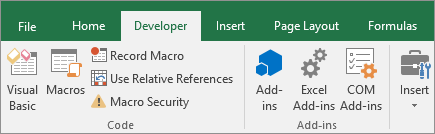
- Can you use Macros to paste values on larger data sets after the values have been refreshed? This is a powerful tool for large spreadsheets, but you need to be cautious when applying this to ‘live data’. Your Macro code will need to:
Drag the formulas down, across the dataset
Ensure the formulas are refreshed
Copy and paste as values from the dragged down rows (making sure you are either not pasting over the first row if that’s where the formula is, or that it does this later.
If you can’t do any of the above to reduce the size of your sheet we suggest checking out “Reduce the file size of your Excel spreadsheets” for less strategic options.
Hopefully this has given you some ideas on how to approach more user-friendly sheets.
Would you like to talk to us about ways to innovate your processes? We’d like to have a chat! Feel free to contact us for a free consultation.